
A background shadow remover for product photos
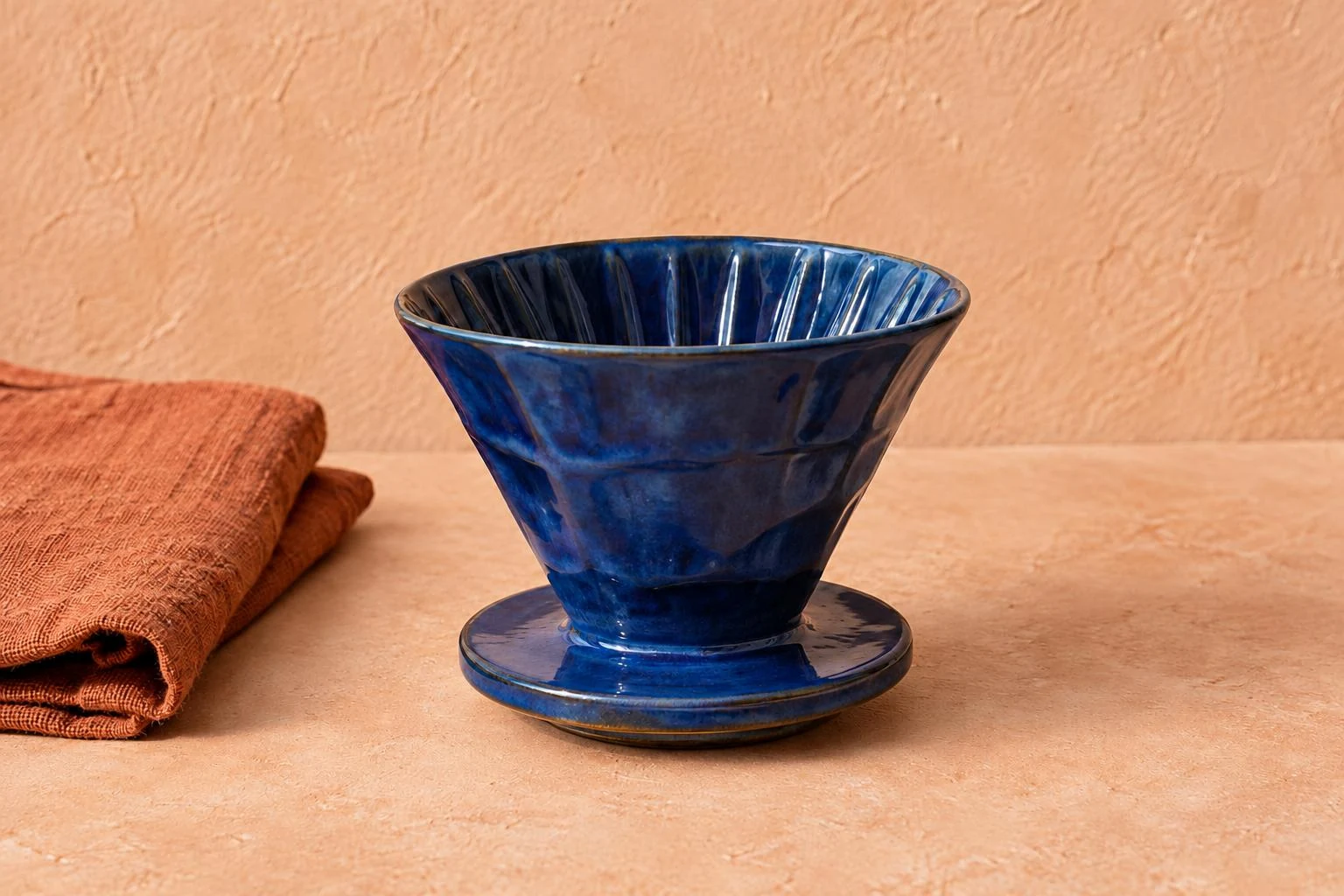
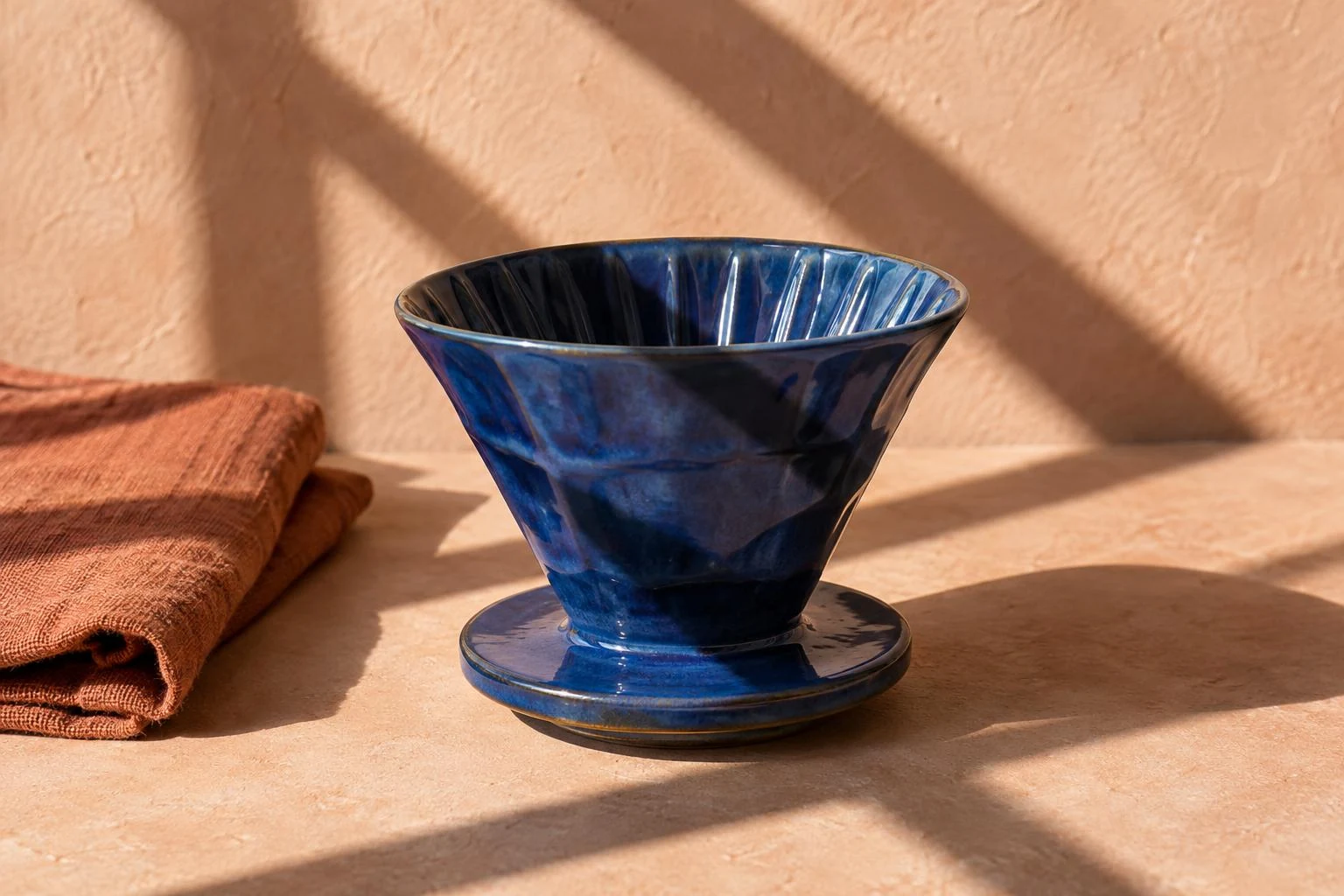
Remove shadow from photo backgrounds without asking for a new setting. The cobalt ceramic example tests window-shadow cleanup while retaining the glaze, saucer and small grounding shadow.
Examples edited from AI-generated source images with the default prompt. Results vary with your photo and selected model.
Remove shadow from photo backgrounds without asking for a new setting. The cobalt ceramic example tests window-shadow cleanup while retaining the glaze, saucer and small grounding shadow.
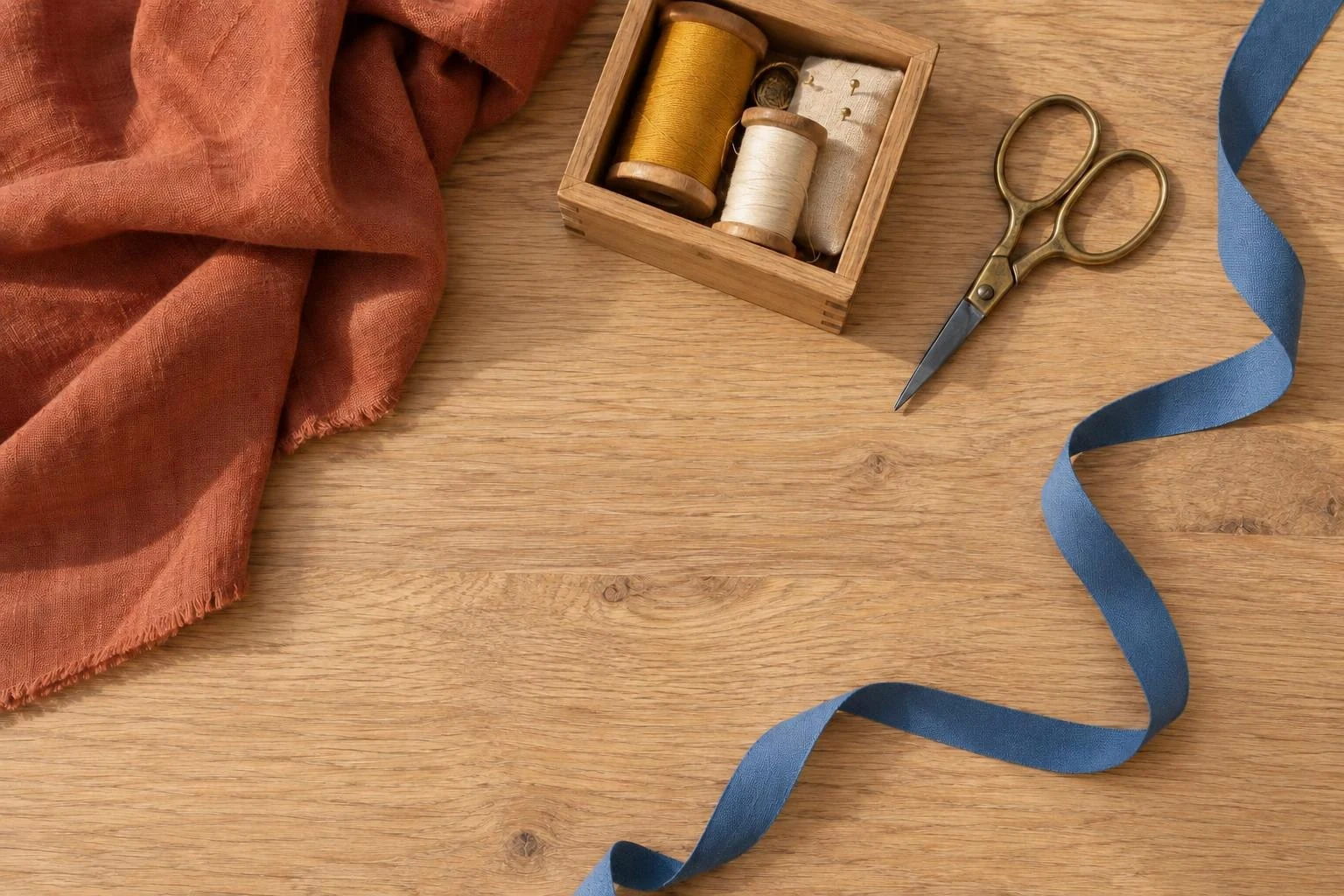
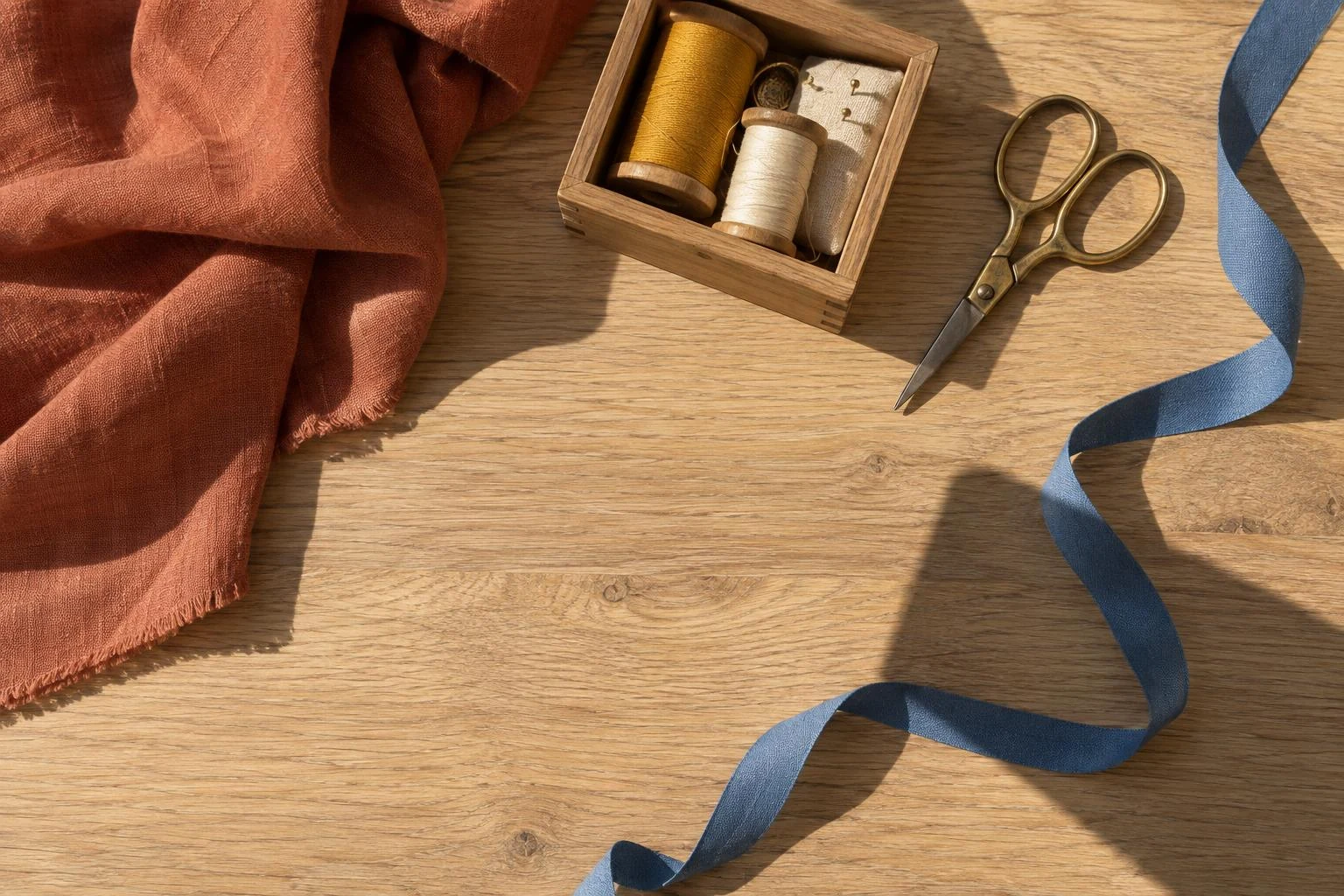
A phone held above a table can leave a dark block across the scene. Target that cast shadow while asking to preserve wood grain, fabric, ribbon and the edges of small objects.
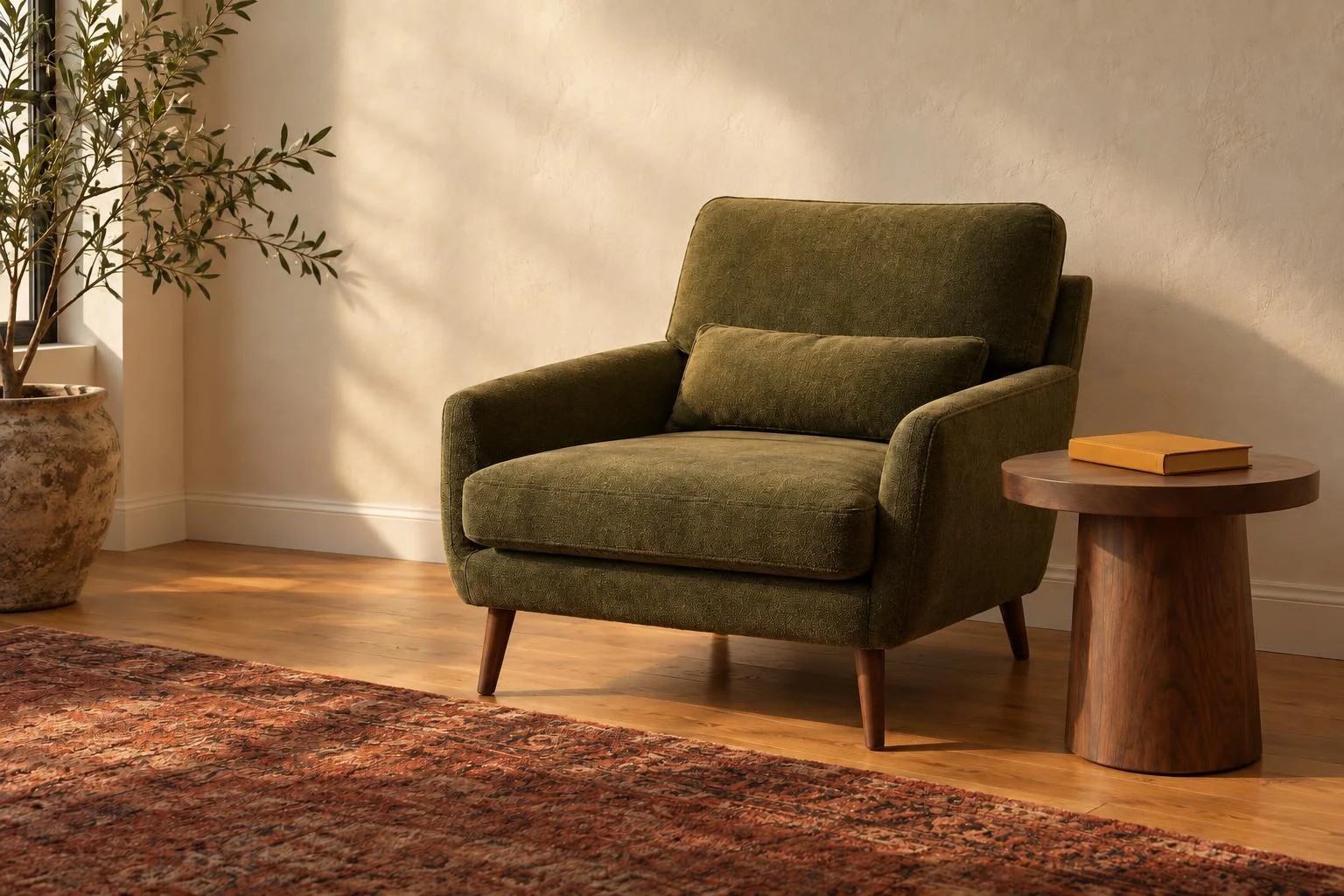
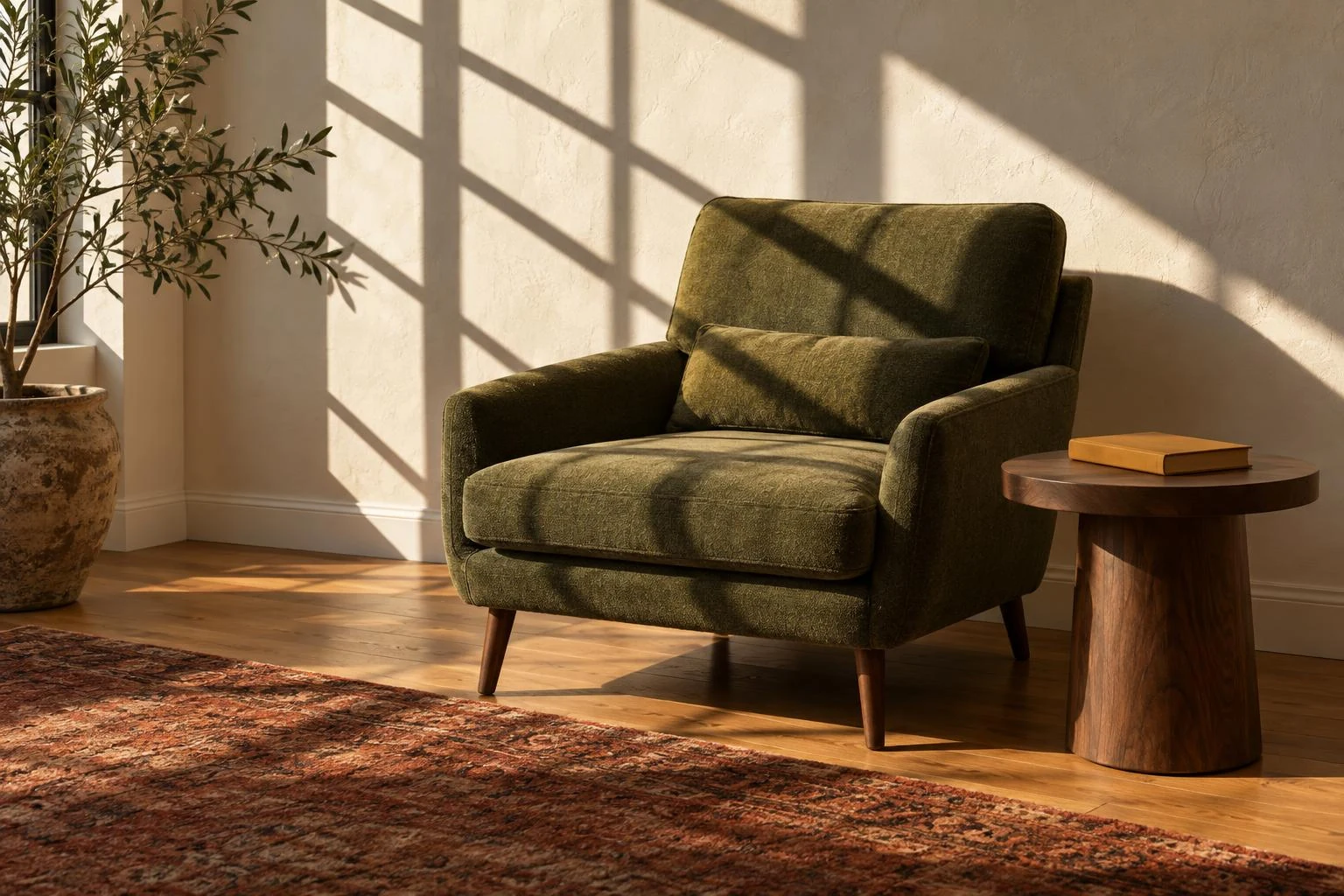
Reduce hard window shadows across a wall or chair. Keep the furniture, room colors and gentle shading that makes the space feel three-dimensional.
Give the photo shadow remover one source image and a focused instruction.
Choose a clear JPG, PNG or WebP. To remove shadow from photo details, start with a source that still shows texture inside the dark area.
Use the default prompt or name an area, such as the window stripe across the table. Review the selected model and credit cost.
Check edges, colors and small details. Download the result you like, or continue editing with a more specific instruction.
Remove shadow from photo distractions with a specific request. Keep the original scene as the reference instead of rebuilding it.
Remove shadow from photo surfaces while asking to keep colors, texture and object shapes. Inspect delicate details such as stitching and glaze afterward.
A photo shadow remover should leave believable grounding beneath objects. Removing every dark area can flatten the image.
A clearer source gives the model more visible information to work with.
Choose a source with detail still visible in the shadow. Solid black areas cannot reliably reveal their original content.
Name the shadow: a phone-shaped patch at the bottom, or window bars across the background.
Ask to retain the existing palette. Check that dark fabric or paint has not been mistaken for a shadow.
When you remove shadow from photo backgrounds, keep the rest of the scene balanced. Reduce the correction if the result looks flat.
Compare the photo shadow remover result with your original before downloading.
Ready to remove shadow from photo distractions? Upload your image and review the prompt and credit cost before generating.
Remove shadow from photoWork on one image at a time, with the original nearby for comparison.
Remove shadow from photo surfaces while keeping the item’s shape and material believable.
Reduce camera shadows across fabric, tools or handmade objects.
Remove shadow from photo walls without asking to redecorate the room.
Soften a distracting hard shadow while preserving the original arrangement.
Yes. Guest credits let you try it without an account. Daily and network limits apply. Model and quality determine the cost; further use may require signing in or buying credits.
Identify the distracting shadow in your prompt and ask to preserve unaffected areas. The AI edits the photo; it is not a precise exposure slider. Compare the result for unwanted changes.
The default prompt asks to preserve the background, crop and perspective. AI can still alter details, so inspect the result before using it.
Use the browser upload control to select your image. Keep your original and download a result you want to retain. No separate app is required.
No. Small shadows under objects help them look grounded. The goal is to reduce distracting cast shadows while retaining natural depth.
Shadows are dark areas caused by blocked light. Glare is an unwanted bright reflection or flare. Try glare removal for bright patches; brightening a shadow does not fix glare.