
AI Image Combiner

Quick Picks:

Multi Fusion needs 2-16 source images.

237 / 20000
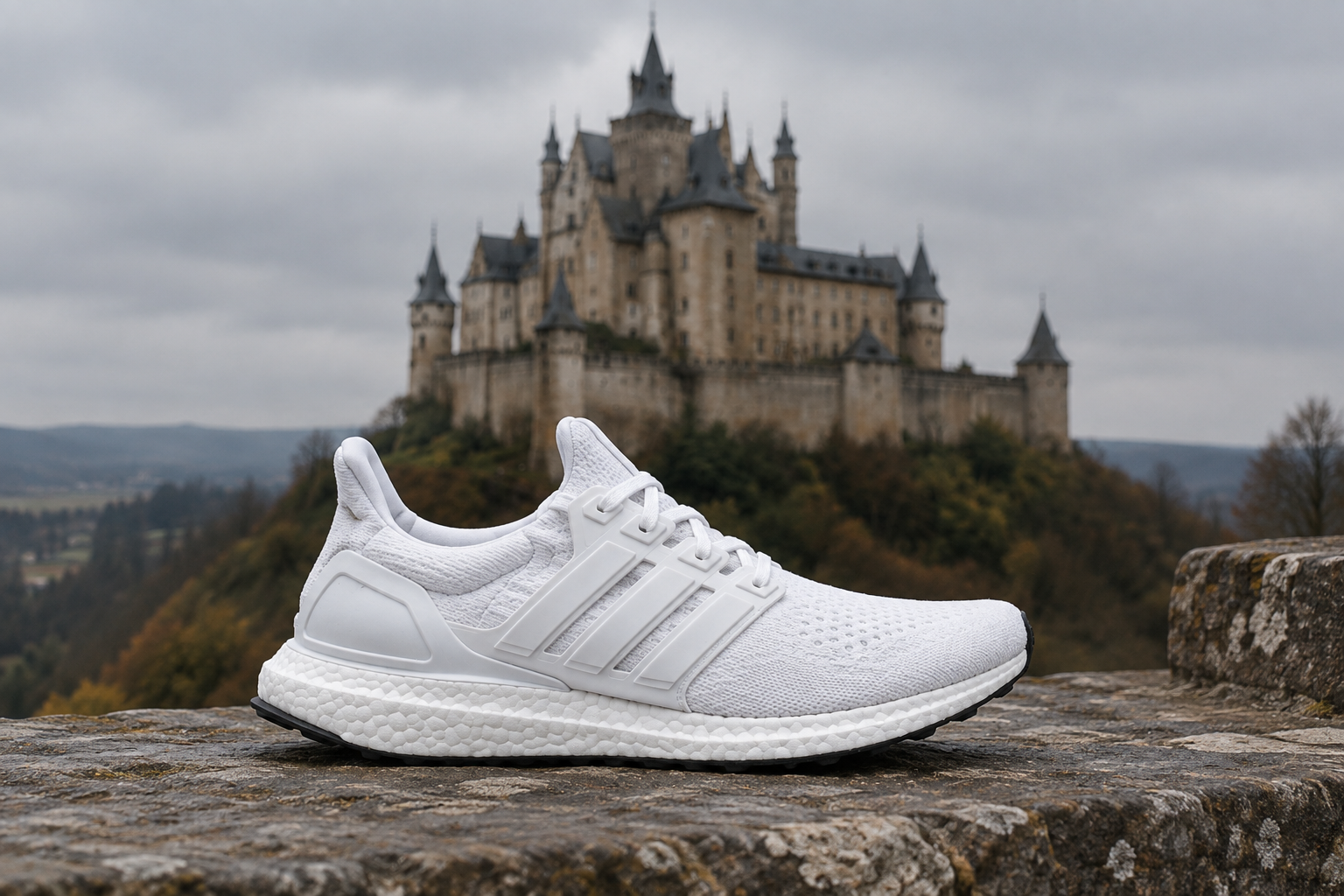
AI image combiner result: one white sneaker on a stone terrace with a castle behind it

Plan a scene with the AI image combiner

Generated with GPT Image 2 Low

Two source photos, one castle setting

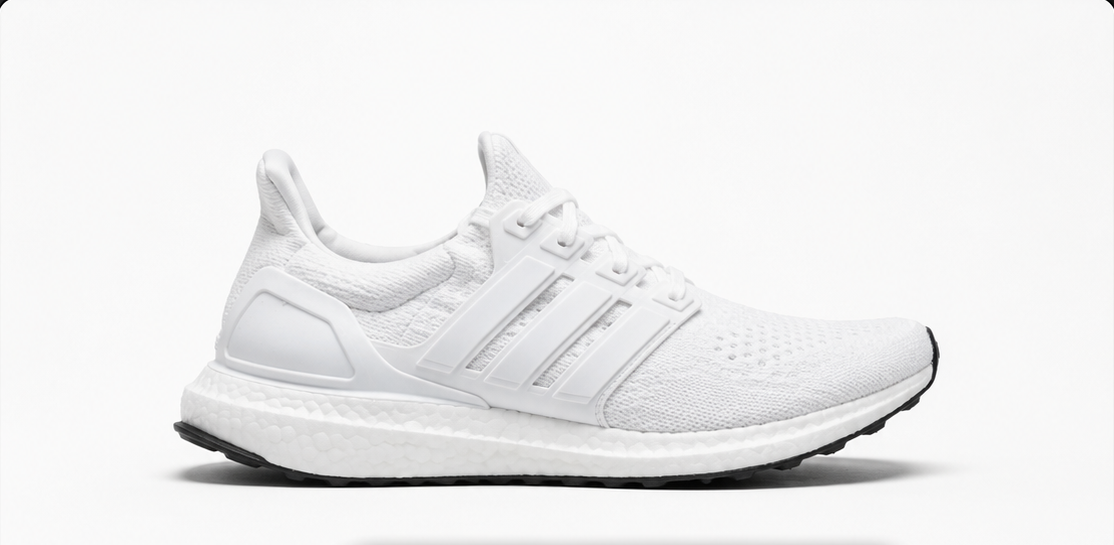
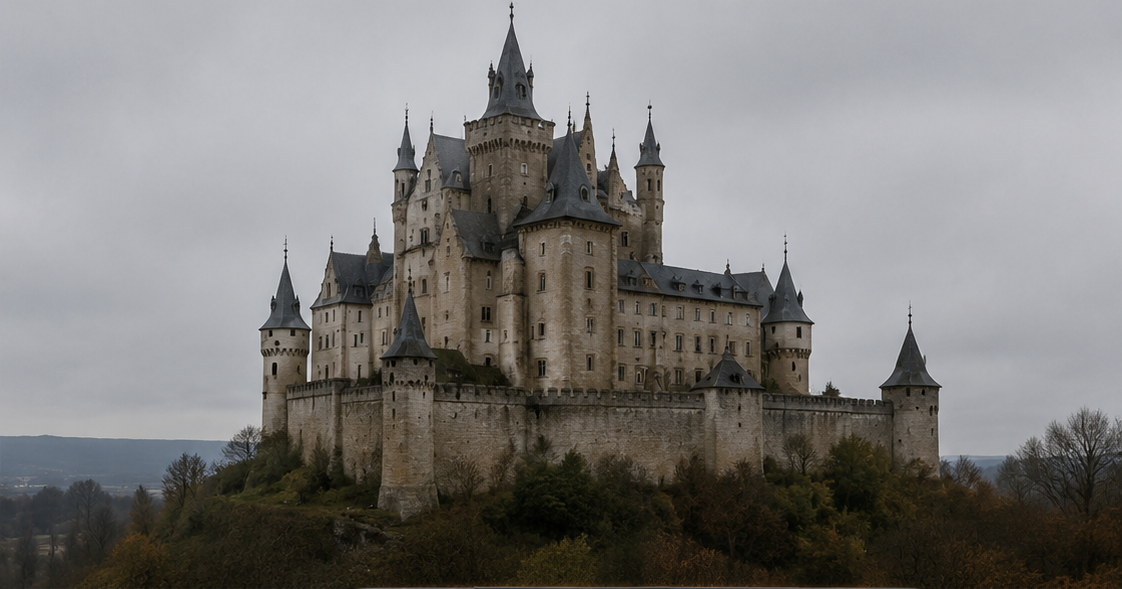
This AI image combiner result uses the two sources below: a white sneaker and a castle. The brief places one shoe on a stone terrace in overcast light. The AI image combiner changed some knit, sole and building details, so treat this as a creative composition, not an exact product reproduction.
AI image combiner result: one white sneaker on a stone terrace with a castle behind it

AI image combiner source photos

White sneaker on a plain background, used as the product reference
Image 1: the product
Castle under an overcast sky, used as the scene reference
Image 2: the setting

AI image combiner prompts

Choose a starting point, then name what each source contributes.

How to use the AI image combiner

Multi Fusion turns your references into one image per request.

01

Add your references

Add at least two images to the AI image combiner. Choose a clear main object and a scene or texture you have permission to use.

02

Describe the composition

Tell the AI image combiner what to take from image 1 and image 2. Name the details to keep and the space you need around the object.

03

Review and continue

Compare the AI image combiner result with your sources. Check scale, labels and shadows before downloading. Another edit uses credits at the displayed price.

AI image combiner: one image

Bring together the object, setting and texture that define your idea.

Source photos

Give the AI image combiner a clear brief

Start with two sources that work together. A cup photographed from above fits a tabletop seen from above. Add another reference only when it supplies a missing detail.

Combine images
Choosing a tool

AI image combiner or collage maker?

A collage keeps the original pictures in separate panels. An AI image combiner creates a new scene from their content. Choose it for a blended composition; use a collage tool for an exact grid.

Check your AI image combiner result

Look beyond sharpness. Do the objects belong in the same scene?

Scale and perspective

Tell the AI image combiner where the object sits. Compare its size with nearby furniture, paving or other familiar objects.

Lighting and shadows

A floating object often needs a contact shadow. Ask the AI image combiner to match the scene's light direction and shadow softness.

Product accuracy

The AI image combiner can change small labels, colors or materials. Compare these with your source before using a product image.

Output framing

Choose a supported aspect ratio in the AI image combiner. Leave room for the whole object and any headline you plan to add later.

Choosing AI image combiner references

Clear sources make placement easier to describe.

No. The AI image combiner accepts different crops. Similar camera angles help; explain the intended scale when one source is a close-up.
Separate images give the AI image combiner clearer references. A collage may carry its panel layout into the result.

Try your images together

Give the AI image combiner an object, a setting and a short brief.

Open AI image combiner

AI image combiner ideas

Start with product, material or landscape photos you can use.

Product scene concepts

Try a campaign setting with the AI image combiner. For a store listing, check that the result still represents the item you sell.

Material studies

Use the AI image combiner to explore a fabric or finish on an object. The result is a design idea, not a manufactured sample.

Landscape compositions

Bring a foreground and distant view into the AI image combiner. Check that their horizons, scale and light agree.

AI image combiner questions

Q

How many sources does the AI image combiner need?

At least two. The upload area shows the maximum for your model and account. Each request returns one combined image.

Q

Does the AI image combiner keep every original detail?

No. It generates new pixels, so fine details can change. Use a layer editor when you need the originals preserved exactly.

Q

Can I blend a product with a scene?

Yes. Give the AI image combiner a product photo and a setting, then specify placement. Review labels and proportions before publishing.

Q

Is the AI image combiner free to try?

Available trial or account credits can cover an edit at the displayed price. Check your balance first. Free use is limited; more edits need sufficient credits.

Q

What if I only have one image?

Switch to Single Edit, or open Image to Image AI for a conversation. The AI image combiner needs multiple sources for fusion.

Q

Can I download the AI image combiner result?

Yes. Preview and download a successful result, or use it as a source for another edit. A new generation uses credits.

Q

Why does my blend look wrong?

Conflicting angles or lighting can confuse the AI image combiner. Try two better-matched sources, describe their roles and simplify the scene.