
AI Background Changer Online

Quick Picks:

Single Edit uses one source image.

213 / 20000
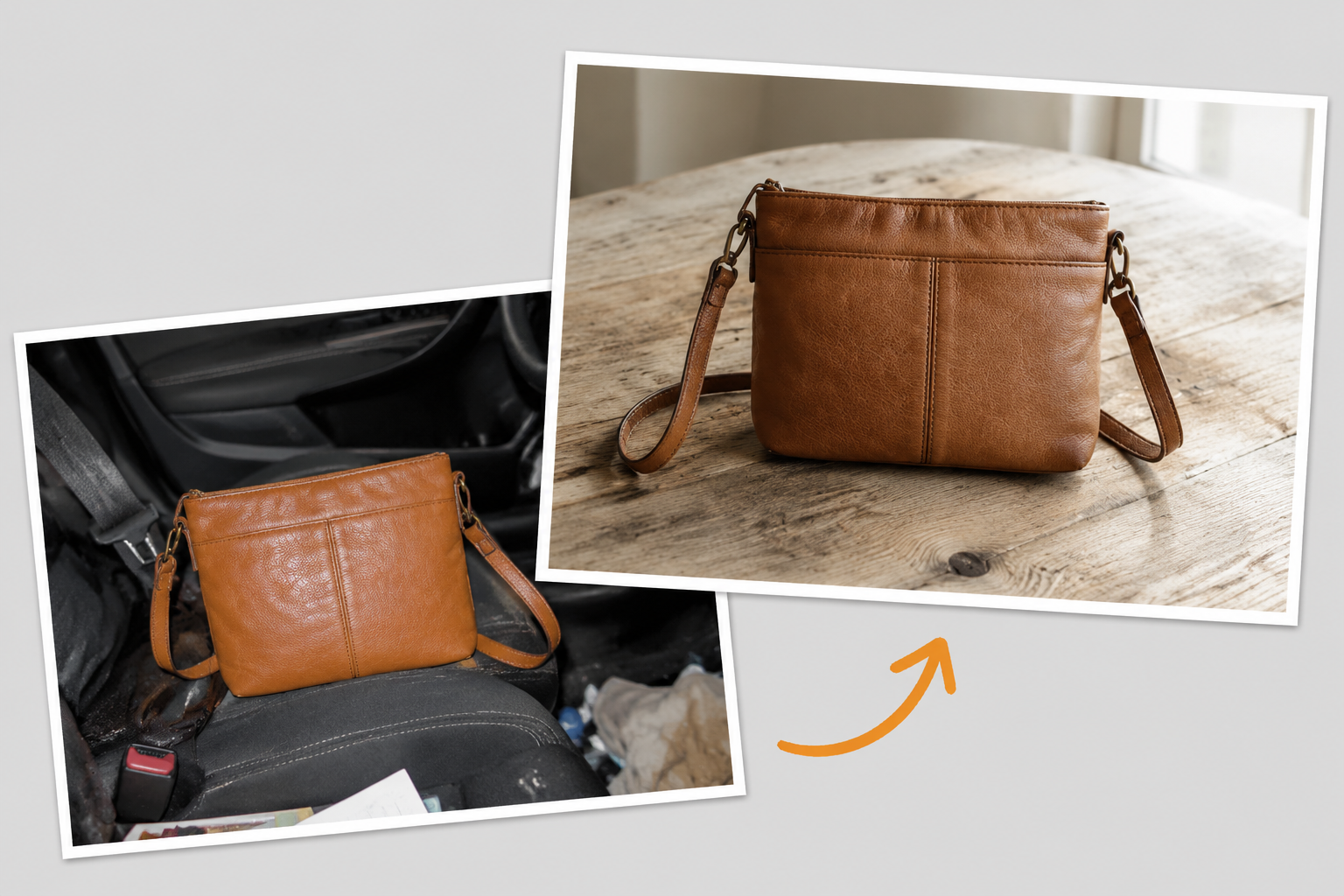
Brown shoulder bag on a car seat and on a wooden tabletop, illustrating a background change

From a car seat to a tabletop

Background example

Brown shoulder bag on a car seat and on a wooden tabletop, illustrating a background change

A bag shown in two different settings.

This example illustrates replacing a distracting setting with a simple wooden surface. Compare the bag's color, seams, strap, and proportions as well as the background. AI edits can alter those details, even when the prompt asks to preserve them.

Background prompt ideas

Choose a setting, then adapt the object details and light direction to your source photo.

How to change a background with AI

Start with one source image and review each edit before using it.

01

Upload a photo

Choose a sharp photo with the whole object visible. Fine edges and surface details are harder to preserve when the source is blurred, dark, or cropped.

02

Describe the scene

Name the backdrop, supporting surface, and light direction. State which colors, markings, materials, and proportions should stay the same.

03

Preview and refine

Compare the result with your source, including edges, markings, and shadows. Download a suitable result, or simplify the scene and retry. Each new generation uses credits.

Cleaner background edits with AI

A new setting should support the object, with a believable surface, perspective, and light direction.

Subject first

Define what should stay the same

Separate the requested background change from the details that matter in your source. For a bag, name its seams, strap, hardware, and leather texture. For ceramics, name the rim, glaze, and handle. Clear instructions guide the edit, but do not lock the original pixels; compare the result before publishing it.

Try the editor
Online workflow

Choose a scene that fits the source

An object photographed from above fits a tabletop more naturally than an eye-level room. Keep the source camera angle and light direction in mind when describing the new setting. Compare studio, color, and lifestyle backgrounds in separate edits; each request creates one result.

What makes a background change look natural

Check these four details when comparing the new scene with your original photo.

Protect the subject

Compare shape, markings, material, and color with your source. Reject an edit that changes an important product detail, even if the background looks good.

Match the light

A background can look wrong when the light direction changes. Ask for natural lighting, soft shadows, and a scene that matches the original photo.

Name the scene

Describe where the object rests as well as what is behind it: a wooden table beside a window, a studio sweep, or a desk against a plain wall.

Check the edges

Inspect thin straps, handles, glass, and reflective surfaces at full size. If edges become distorted, try a sharper source and a less complex background.

Background changer notes

Choose the right kind of background edit for the result you need.

Use Multi Fusion or the AI Image Combiner for a source object and a separate scene reference. Identify the role of each image in the prompt. The result is a generated composition; it is not an exact layer paste of the two files.
This page is for replacing the background with a generated scene or color. It does not provide a dedicated transparent-background export workflow. A white background is not transparency.
You can describe a color or include its hex value in the prompt, but generative editing does not guarantee exact pixel colors. Check the downloaded file and use a color-controlled editor when exact matching is required.
Check whether the camera angle, light direction, and contact shadow agree. Ask for a surface beneath the object and a background with lighting closer to the source. A simpler scene can be easier to match.

Replace the background

Upload a photo, describe the new scene, and use the AI background changer to create a cleaner image.

Try AI background changer

Background edits worth testing

Start with an object photo you have permission to edit.

Catalog backgrounds

Replace a distracting room with a simple studio setting for a photographed object. Check color, shape, and labels against the original before using the image in a listing.

Handmade objects

Try a quiet tabletop or plain wall behind ceramics, stationery, or accessories. Keep surface texture and small construction details visible.

Scene concepts

Explore a desk, cafe table, or studio setting for a campaign concept. Use one background direction per edit to make comparisons easier.

AI background changer FAQ

Q

Can I change a photo background online for free?

Available trial or daily credits can cover an edit when your balance meets the selected model's cost. Check the credit balance and generation cost shown in the editor. Additional edits require sufficient credits; usage is not unlimited.

Q

What kind of image works best?

Use a sharp JPEG, PNG, or WebP photo with a clearly visible object and enough space around its edges. Very dark, blurred, transparent, or highly reflective objects can be harder to edit cleanly.

Q

Can AI change background without changing the subject?

You can ask it to preserve the subject, but generated edits may still change colors, edges, text, or proportions. This is not a pixel-locked cutout tool. Compare with the source and reject results that alter details you need to keep.

Q

Can I replace a background with a solid color?

Yes. Describe a plain white, gray, or colored backdrop, and say whether you want a contact shadow. Review the result if you need a uniform background or an exact color value.

Q

What should I write in an AI change background prompt?

Name the scene, what to preserve, and how the object meets the surface. For example: place the bag on a wooden table beside a window, preserve its seams, strap, color, and shape, and match the original light direction with a soft contact shadow.