Image to Image AI Generator

Use image to image AI to transform an existing photo with a written instruction or added visual references. This page previews a conversational workspace for edits, comparisons, and follow-up revisions.

Preview only: image to image AI generation on this Agent page is coming soon.

Try an image to image AI edit

A clearer image to image AI workflow

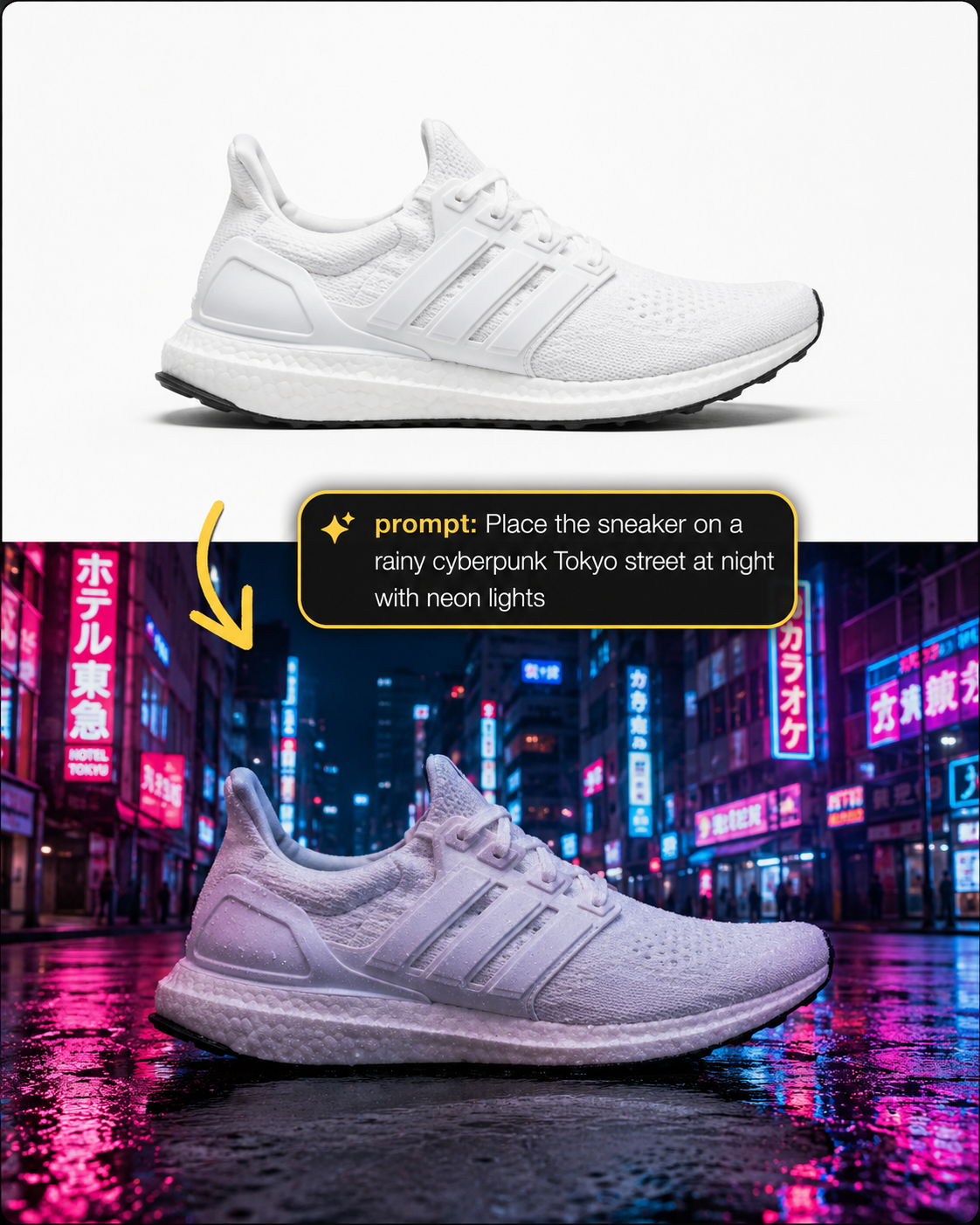
Product photo transformed from a plain source image into a night campaign scene

Describe the change, not the software

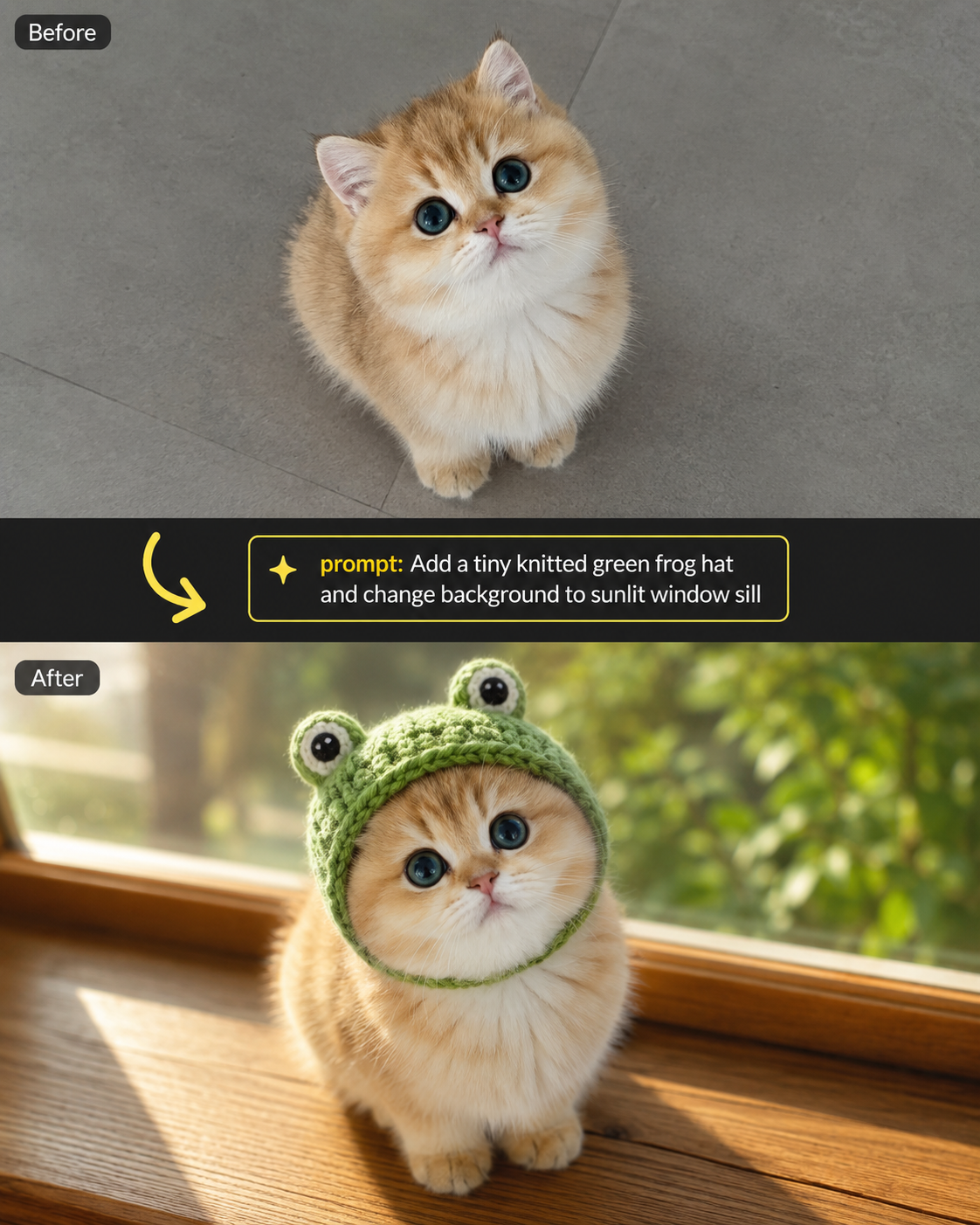
An image to image AI request can be as simple as changing a background, replacing a subject, cleaning up a product shot, or improving an old photo. The Agent turns that request into a focused editing task without exposing technical provider settings.
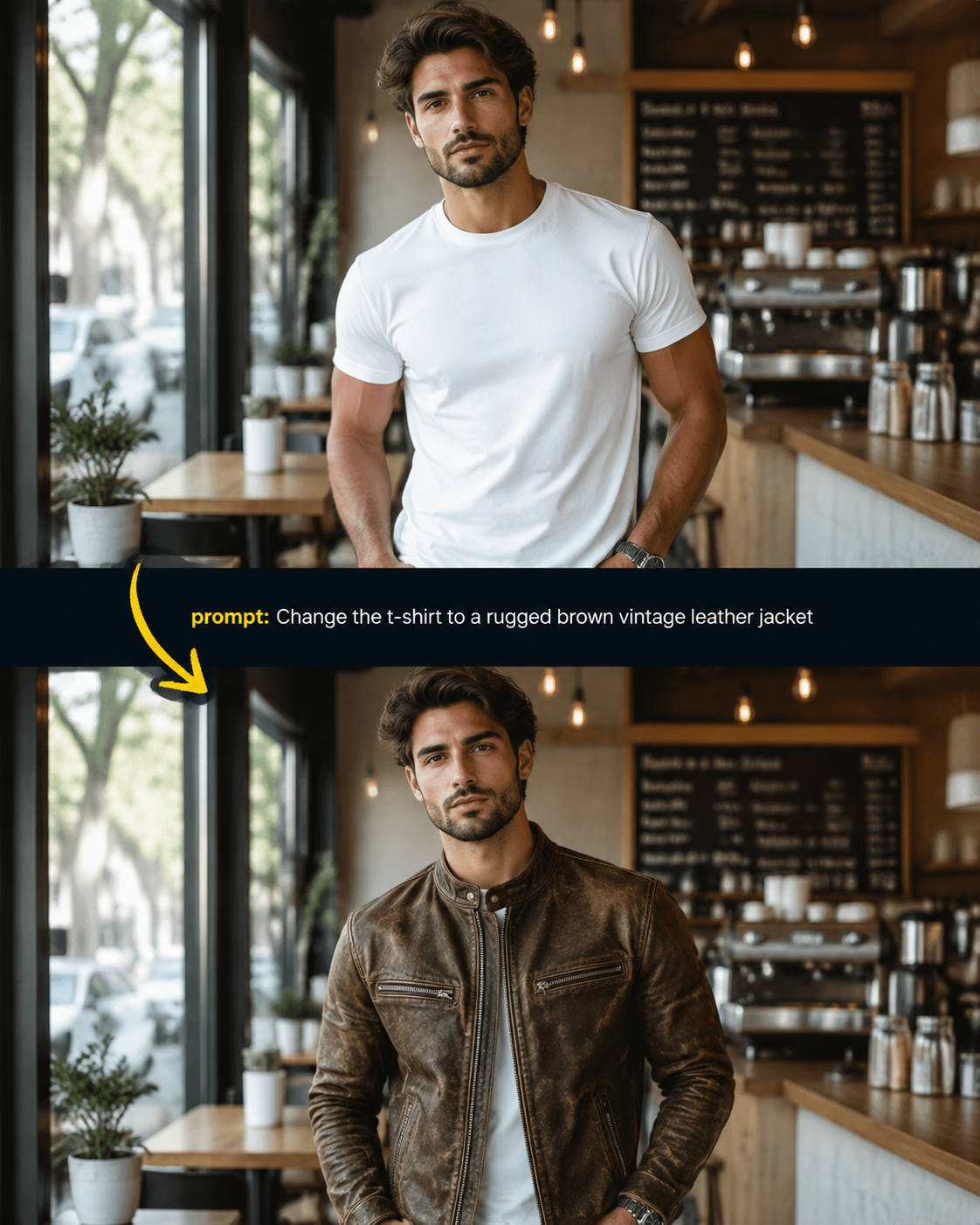
Two source images used together for a reference-based image edit

Use one image or several references

Image to image AI can work with one source for a direct photo change. When the result depends on another subject, product, style, or scene, add reference images and explain how each one should guide the edit.

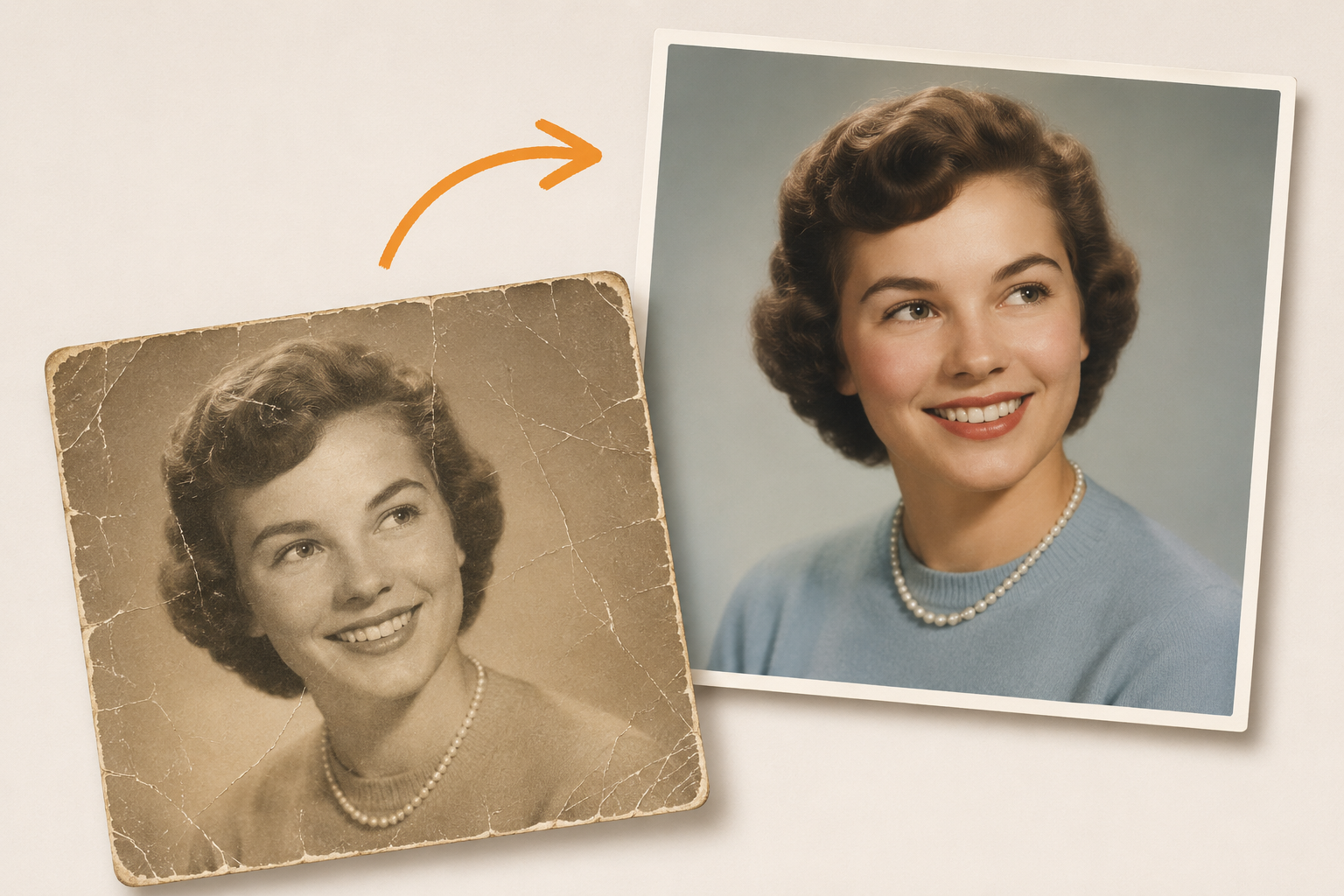
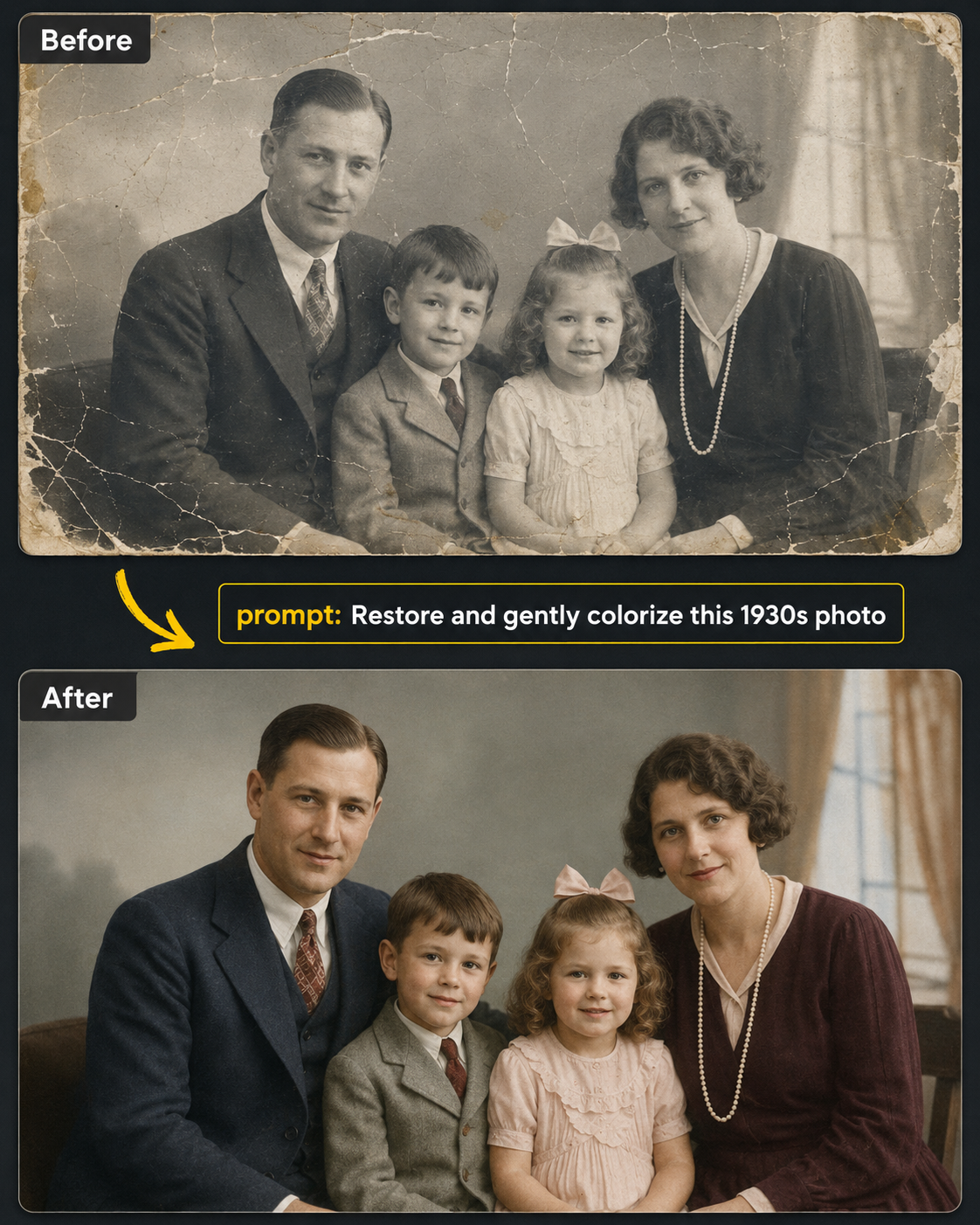
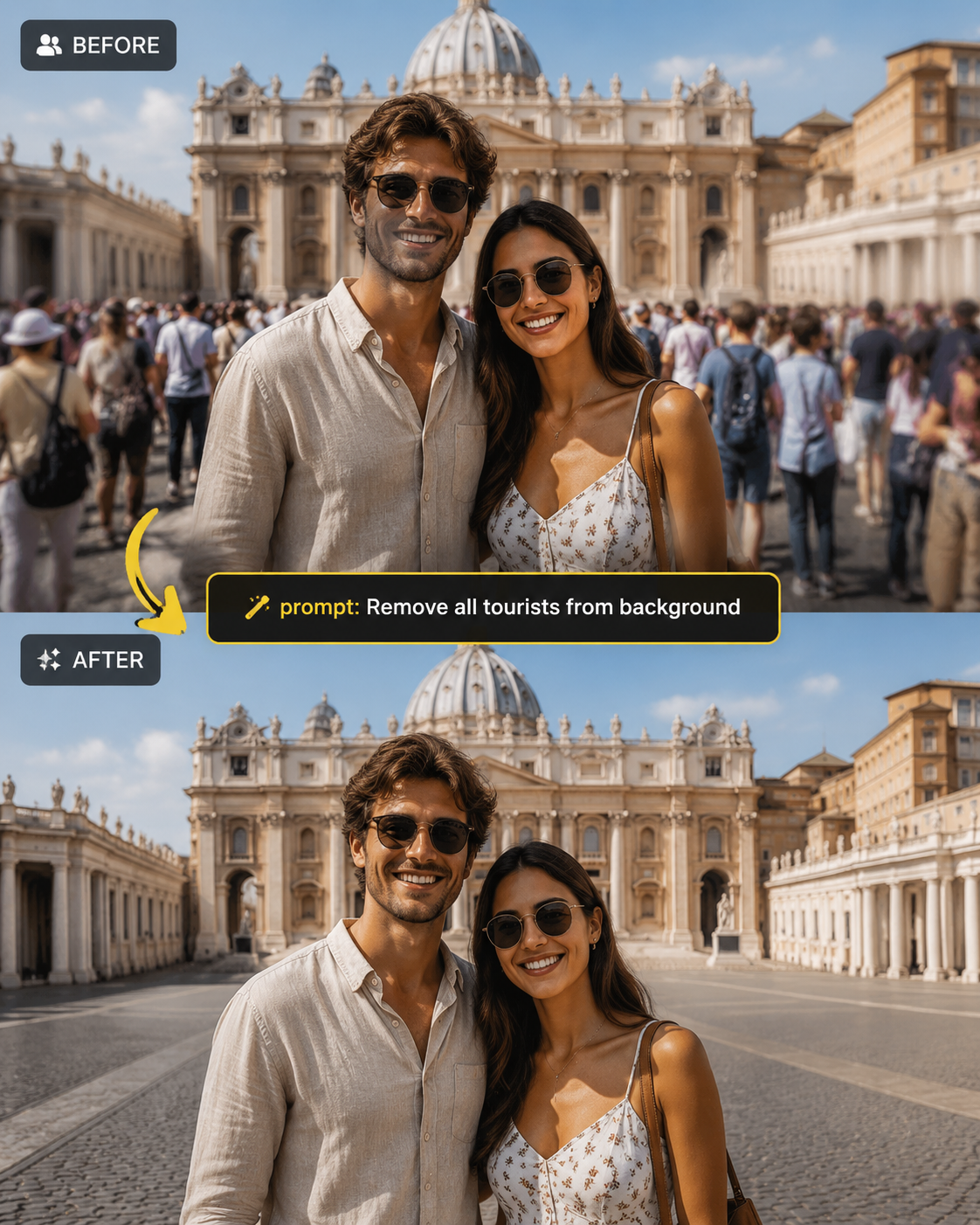
Old portrait photo restored with clearer color and detail

Follow the edit from request to result

The image to image AI workspace keeps the request, progress, and finished image in the same conversation. You can see when the task is being prepared, when generation starts, and when the result is ready to preview or download.

Shoe product image revised with a new background while preserving the product

Refine the result without starting over

With image to image AI, a finished result can become the starting point for the next change. Ask for brighter lighting, a cleaner background, a different crop, or another focused revision while keeping the earlier result connected to the conversation.

How an image to image AI generator works

The image to image AI process begins with an existing picture, then uses your instruction and selected references to produce a revised version.

01

Choose the starting image

Upload the photo you want to change. Add another image only when it provides a subject, style, product, or scene that should guide the result.

02

Explain what should change

Name the subject, requested change, and anything that should stay intact. Constraints about composition, shape, identity, or lighting make the intended edit easier to understand.

03

Review and continue

Compare the result with your source at full size. If one area needs work, continue from the result with a smaller follow-up request.

Ways to use image to image AI

Image to image AI supports practical edits, visual references, and controlled revisions within the same source-based workflow.

Product photos

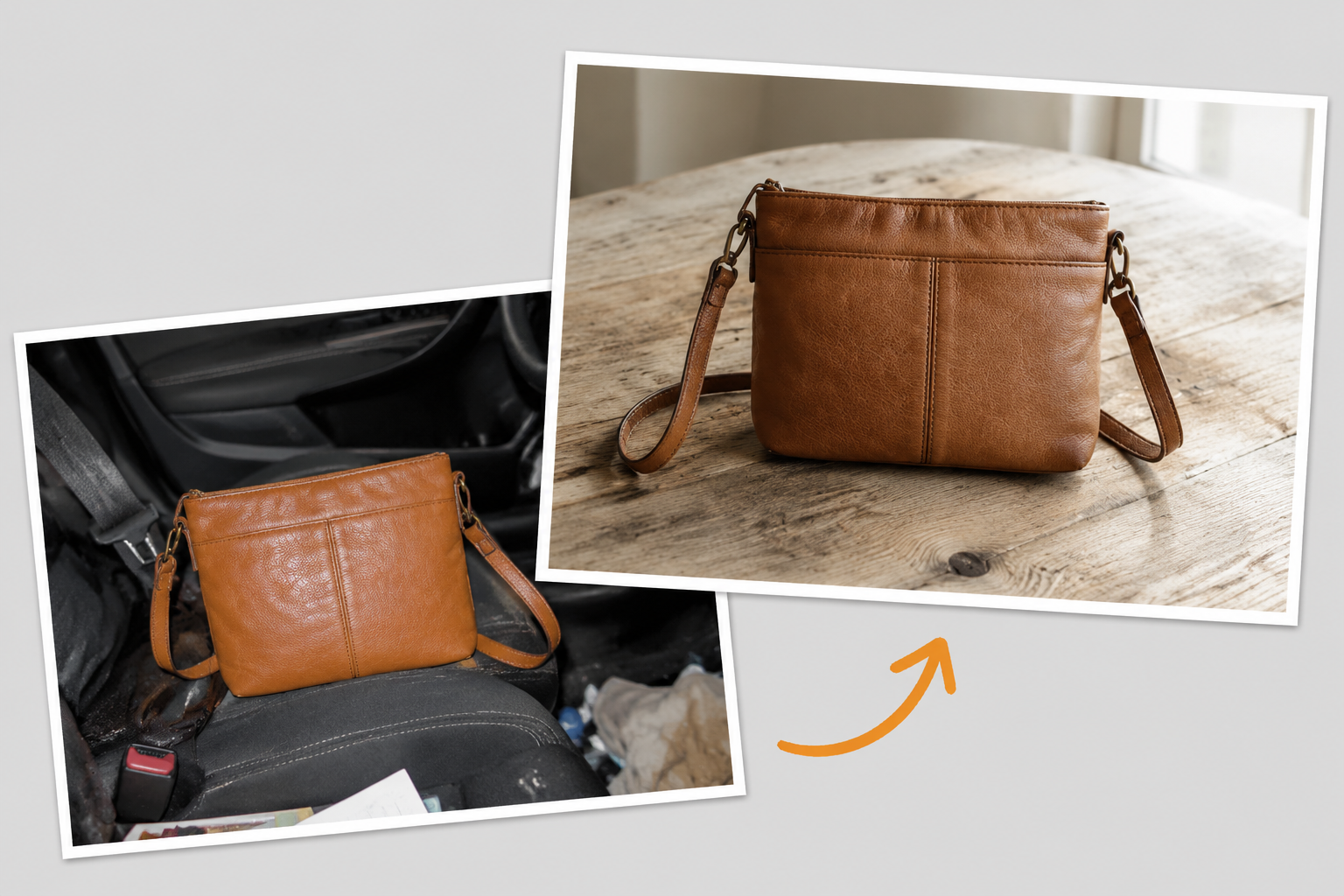
Use image to image AI to place an existing product in a cleaner setting, improve uneven lighting, remove visual clutter, or prepare a consistent listing image while keeping the item recognizable and accurate.

Photo cleanup

Remove small distractions, repair damaged areas, correct weak exposure, and improve clarity. The source image remains the reference for composition, identity, texture, and the parts that should not change.

Reference-based edits

Image to image AI can use another picture when words are not enough. A reference can show the replacement subject, visual direction, material, or scene that should guide the new version.

Follow-up revisions

Continue from a completed result to adjust one part at a time. This is useful for testing background options, refining color and lighting, or making a previous edit more restrained.

Who is image to image AI for?

Image to image AI is useful whenever the original picture matters and the requested change needs to stay focused.

Clean ecommerce product image

Ecommerce teams

Prepare product listings, test cleaner backgrounds, and improve presentation while keeping the item accurate and recognizable.

Product image adapted into a campaign visual

Creators and marketers

Use image to image AI to adapt existing visuals for campaigns, social posts, thumbnails, and new concepts without rebuilding every asset from scratch.

Restored portrait photograph

Photographers and designers

Handle cleanup, restoration, reference-based changes, and early visual exploration before moving into detailed production work.

Frequently Asked Questions

Straight answers about source images, prompts, references, access, and credits.

Q

What is image to image AI?

Image to image AI starts with an existing picture and creates a revised version from instructions. An AI image to image generator can use the source composition, subject, colors, or structure when making a focused change.

Q

How is it different from text to image?

Text-to-image starts from a written prompt. An AI image generator from image inputs, often called image to image AI, starts from visual material you provide and is better suited to cleanup, restoration, replacement, and controlled revisions.

Q

Can I use more than one image?

Yes, when the selected model accepts multiple sources. One image may be the scene to edit while another supplies a subject or reference. The prompt should explain how the images relate.

Q

Is image to image AI free to try?

This Agent workspace is still a preview and cannot generate images yet. When it opens, free usage will follow the credit rules shown in the product, with the task cost displayed before generation.

Q

Is there an image to image AI free no sign up option?

The full Agent workspace requires an account because it saves requests, progress, results, and follow-up edits. Some options in the main Image Editor may be available with guest credits before sign-in.

Q

What makes a useful image editing prompt?

Name what should change, describe the desired result, and state what should remain untouched. Specific constraints about composition, identity, materials, lighting, or shadows are more useful than a long list of adjectives.

Q

Which image formats can I upload?

The planned Agent supports practical source formats including JPEG, PNG, and WebP. File and model limits may vary. Clear source images work best because heavy compression, blur, and tiny details are harder to preserve.

Q

How will credits work in the Agent?

Planning does not create an image. Credits are used when an eligible generation task starts, based on the model and server-defined settings. Failed or unavailable tasks follow the normal credit release rules.

Start an image to image AI edit

Choose a source image, describe one clear change, and preview how the upcoming Agent will keep the request and later revisions together.